Printer will only print double-sided (Fix)
Date Updated: 29/4/21
Applies to: Windows 10
Applies to: Windows 10
Printer will only print double-sided (Fix)
1) In the Start Bar, type 'Control Panel', and open the Control Panel application.
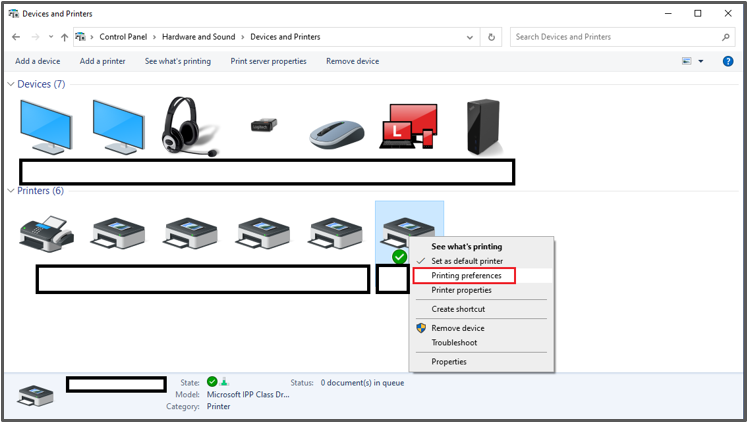
2) In the Control Panel window, search for 'Devices and Printers' in the search bar located in the top right.

3) In the Devices and Printers menu, right-click the printer you want to change. Select 'Printing Preferences' from the list.
4) Under 'Print on both sides', open the dropdown, and select the None option.
5) Click Apply, then OK. Exit the Control Panel. Your printer is now configured to never print documents two-sided.
Related Articles
Adding a Printer/Scanner in Windows 10
Date Updated: 23/3/21 Applies to: Windows 10 Adding a Printer/Scanner 1) From the Start Bar, go to the 'Printers & Scanners' Settings. Select 'Add a Printer or Scanner', and let the automated search run. Any devices found during this process will be ...Finding your default printer in Windows 10
Finding your default printer in Windows 10 Date Updated: 7/2/23 Applies to: Windows 10 Finding Your Default Printer 1. Go to the search box in the bottom left of your screen. 2. Type 'Printers' into the Start Bar and open the Printers & Scanners ...Sharing a USB-connected printer
Sharing a USB-connected printer Updated 10/1/23 Applies to Windows 10 Sharing a USB-connected printer 1. On the PC with a USB-connected printer, search for 'printer' in the Search Bar, and select the Windows 'Printers & Scanners' option. 2. From the ...Adding Camera App to Windows 10
Date Updated: 11/5/22 Applies to: Windows 10 You may have experienced issues with the default Windows 10 Camera App that forced you to uninstall it. The steps below will guide you through the processes needed to reinstall the Windows 10 Camera App. ...Finding your IP Address in Windows 10
Date Updated: 11/5/22 Applies to: Windows 10 How to find your IP Address 1 Go to the Start Bar (bottom left, indicated by magnifying glass and text field). 2) Type 'cmd' into the Start Bar and open Command Prompt. 3) In the Command Prompt interface, ...